
TskVlo puts you in control of the security perimeter. Its access control system gives you the tools to manage who can see and change what — without sacrificing usability.
Four Workspace Roles
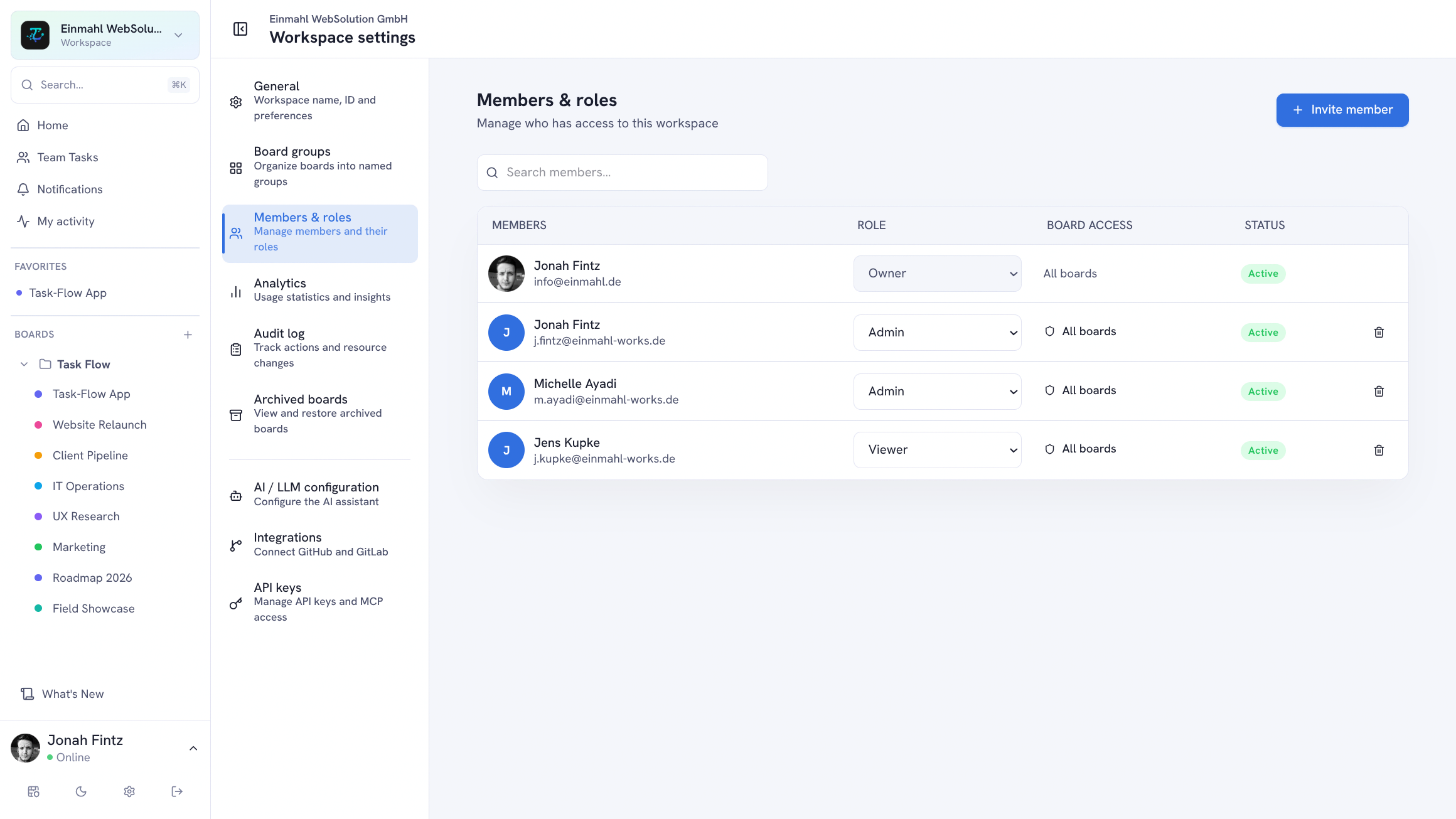
| Role | Capabilities |
|---|---|
| Owner | Full control, cannot be removed |
| Admin | Full control including members, workspace settings, and API keys |
| Member | Create, edit, and delete items, comment, manage boards |
| Viewer | Read-only access |
The Viewer role is ideal for clients, stakeholders, or external collaborators who need visibility without edit access.
Restrict Members to Selected Boards
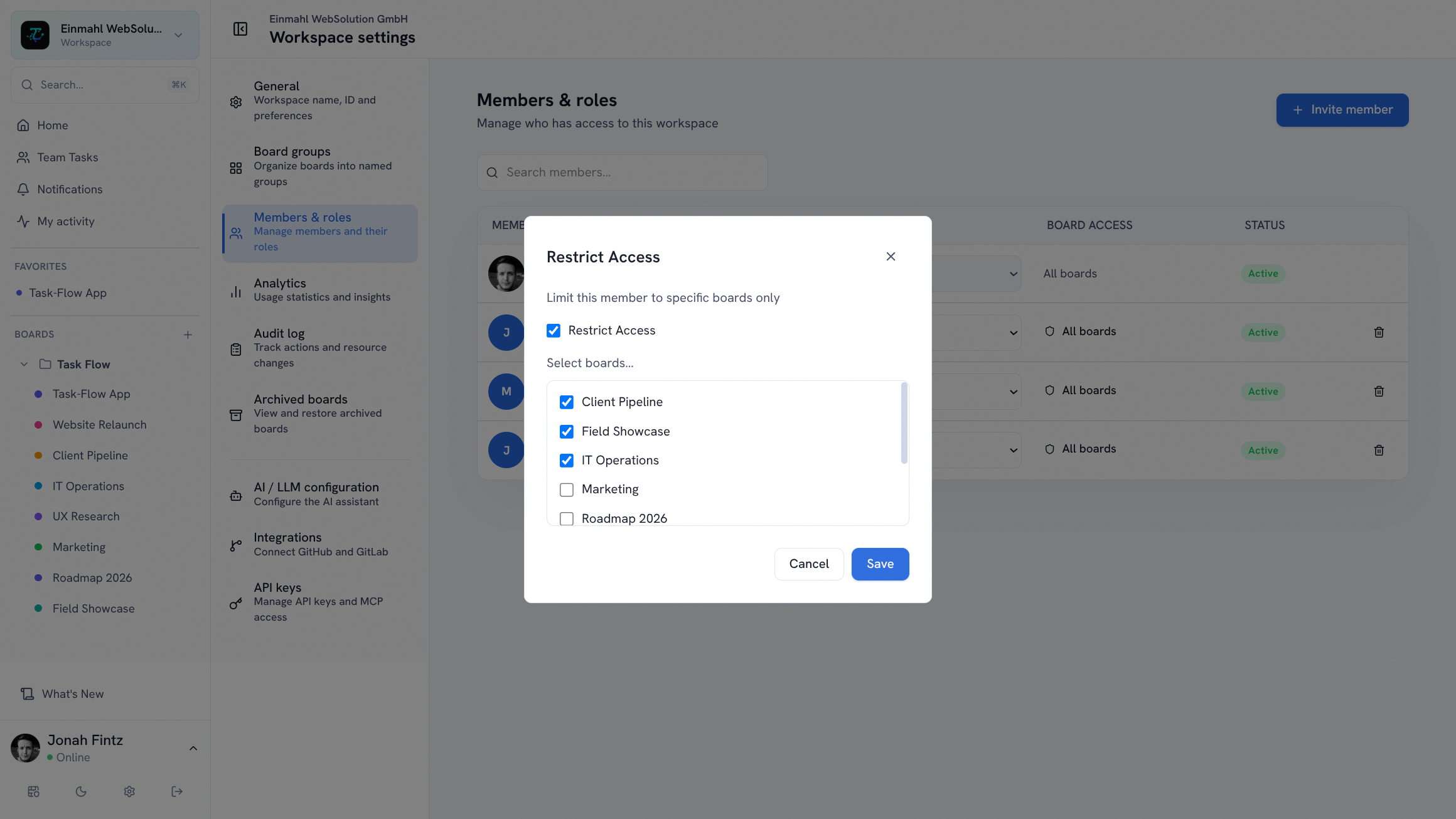
Not everyone needs to see every board. In Workspace settings → Members & roles, click a member’s Board Access button, turn on Restrict Access, and pick the boards they’re allowed to see. A restricted member only sees those boards in the sidebar and workspace views — everything else stays invisible.
Board restrictions combine with roles: a restricted Viewer is a read-only guest on one or two boards, a restricted Member can work on just the boards that concern them. Existing members keep access to all boards until you restrict them.
Wiki Access Per Member
The workspace wiki has its own switch. Each member’s Wiki access checkbox — right next to their board access — decides whether they can open the wiki and see wiki pages in search, independently of which boards they belong to. Keep internal documentation internal while still collaborating with clients on their board.
Email Invitations
Invite team members by email, several at once, and choose their role right in the invitation. Invitations include a time-limited token — expired invitations cannot be reused. Workspace owners and admins can see pending invitations and revoke them at any time.
Two-Factor Authentication (2FA)
Users can optionally enable TOTP-based two-factor authentication. Setup requires scanning a QR code with any authenticator app (Google Authenticator, Authy, 1Password, etc.). After enabling 2FA, a TOTP code is required at every login.
Session Security
- JWT tokens — stateless, signed with a server-side secret
- Refresh token rotation — each refresh invalidates the previous token
- Token revocation — log out all sessions from the profile page
API Keys & AI Connections
Integrations and AI assistants get exactly the access you grant — nothing more:
- Workspace-scoped API keys — created by Owners and Admins under Workspace settings → API keys. A key only ever reaches the workspace it was created in, shows when it was last used, and can be revoked at any time.
- Read-only keys — choose Read-only access when creating a key. Every write request is rejected, and the MCP server hides its write tools from the key entirely.
- OAuth consent for AI clients — assistants like Claude connect to the MCP server via OAuth. Before anything happens, an Owner or Admin logs in, picks the workspace on a TskVlo consent screen, and approves — optionally ticking Grant read-only access. Each connection is tied to one workspace and stops working as soon as that person loses the Owner or Admin role.
Workspace Settings & Transparency
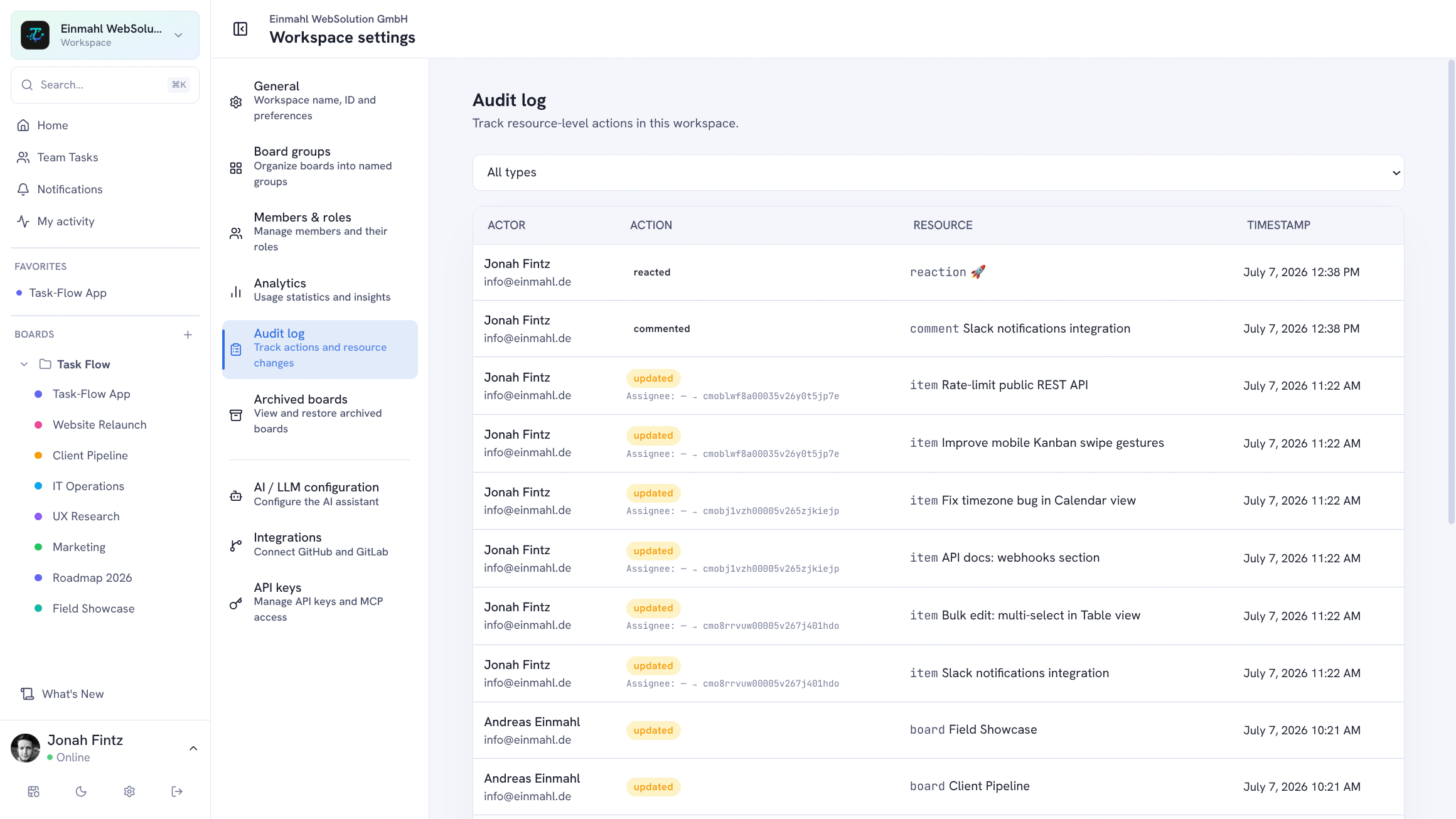
- Audit log — Owners and Admins can track resource-level actions in the workspace: who did what, and when.
- Storage usage — every member can see the workspace’s current storage usage and quota under Workspace settings → Storage.
Data Isolation
Workspaces are fully isolated. A member of Workspace A cannot see, access, or discover Workspace B. All API endpoints enforce workspace membership and board access checks before returning any data — and API keys and OAuth connections are bound to a single workspace.