
TskVlo is AI-native in two ways: a built-in AI assistant inside the app — running on the AI provider you choose — and a full MCP server that turns your boards into a live data source for Claude, Cursor, and other AI tools.
The Built-in AI Assistant
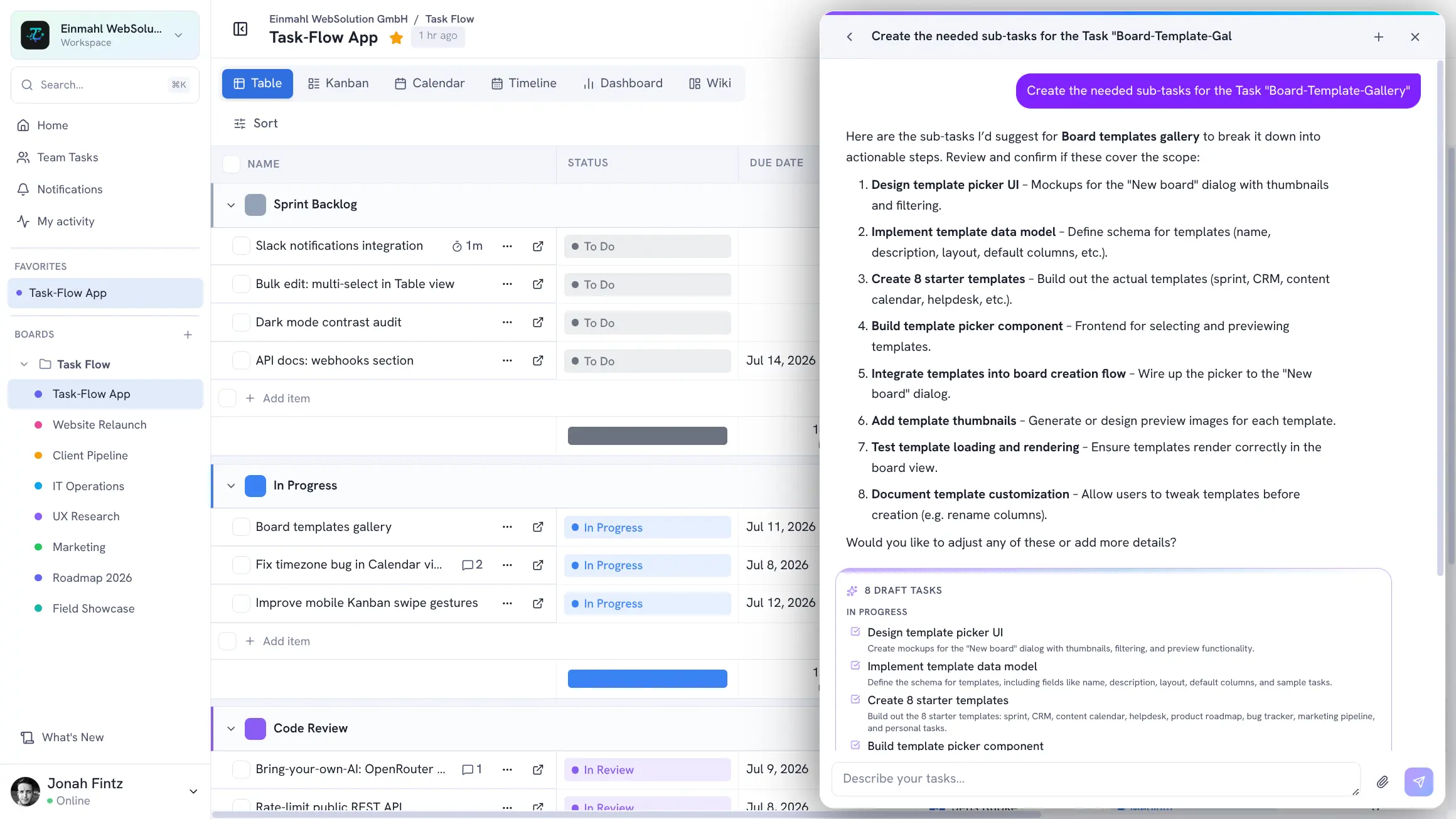
Open the AI Assistant from the sidebar and describe what you’re planning — a sprint, a campaign, an event. The assistant answers in chat and proposes a structured list of draft tasks with titles, descriptions, and suggested groups. You review the drafts, pick the target board and group, and create them all with one click. Nothing lands on your board without your confirmation.
When you scope a chat to a board, the assistant sees that board’s groups and tasks — including statuses, dates, and assignees — so you can ask things like:
- “What’s still open in this sprint, and who’s overloaded?”
- “Break the ‘Onboarding redesign’ epic into tasks and put them in the Backlog”
- “Which tasks are due this week?”
You can even attach images — a whiteboard photo, a wireframe — and have the assistant turn them into tasks (with a vision-capable model).
Summarize Long Discussions
A 40-comment thread and you just got back from vacation? Hit Summarize with AI on any task’s comment thread and get a structured digest: a short overview plus the decisions that were made, open questions, and action items — in the same language the thread was written in. Post the summary as a comment to anchor the state of the discussion, or regenerate it anytime.
Bring Your Own AI Compute
TskVlo doesn’t bundle or resell an AI model — you connect your own. A workspace admin opens Workspace settings → AI / LLM configuration and enters three values:
| Setting | Example |
|---|---|
| API base URL | https://api.openai.com/v1 |
| API key | sk-… |
| Model | gpt-4o-mini |
Any OpenAI-compatible chat-completions endpoint works:
- OpenAI — GPT-4o and friends
- Mistral — EU-based models, a popular choice for GDPR-sensitive teams
- Groq, Together, OpenRouter — fast hosted inference for open models
- LM Studio, Ollama, vLLM — open models on your own infrastructure (the endpoint just needs to be reachable from the internet)
A Test connection button verifies the setup before you save. Your API key is stored securely and never returned in plaintext. Until an admin configures an endpoint, all AI features stay disabled — AI in TskVlo is strictly opt-in.
MCP: Connect Your Own AI Assistant
The Model Context Protocol is an open standard for connecting AI assistants to real tools and data sources. Instead of pasting task lists into a chat, MCP lets the AI call structured tools directly — creating items, updating statuses, querying boards — with proper authentication and error handling.
Available Tools
The TskVlo MCP server exposes around 40 tools across every major resource:
| Category | Tools |
|---|---|
| Workspace members | list |
| Boards | list, create, update, delete |
| Item Groups (columns) | list, create, update, delete |
| Custom Fields | list, create, update, delete |
| Items (tasks) | list, get, create, update, delete, archive, unarchive — including moves to another board |
| Field Values | set, set-multiple, clear |
| File Attachments | list, upload, delete |
| Comments | list (pinned comments first), create |
| Notifications | list, mark as read |
| Automation Rules | list, get, create, update, delete, run |
| Wiki Pages | list, get, create, update, move, delete |
| Resources | tskvlo://boards and tskvlo://wiki/pages live data |
Item listings are kept compact for the AI’s context window: Status and Tags options come back as readable labels instead of IDs, and long descriptions are shortened.
What’s Possible Beyond Board Data
- Your notification inbox — ask the AI what’s waiting for you: mentions, assignments, comments, and replies, unread by default, narrowed to one board or a date if you like. It can mark single notifications or a whole batch as read, and the badge in the open app updates right away.
- Automation rules — have the AI list, explain, create, or change a board’s automations, or run a manual rule. Rules are validated before they’re saved, so a rule can only reference fields and groups of its own board, and changes appear live in the open automation settings.
- Workspace wiki — read, write, and reorganize wiki pages, for example to turn a meeting note into tasks or to document a finished project.
- Moving items between boards — move a task to a group on another board, sub-items included. Fields with the same name and type carry their values over (Status and Tags are matched by label), and the AI gets a report of what moved and what was dropped.
Connecting Claude
The easiest way is OAuth: in Claude, add a custom connector with the URL https://dash.tskvlo.app/api/mcp, log in to TskVlo when prompted, choose the workspace, and click Authorize. No key to copy, and Claude acts as you.
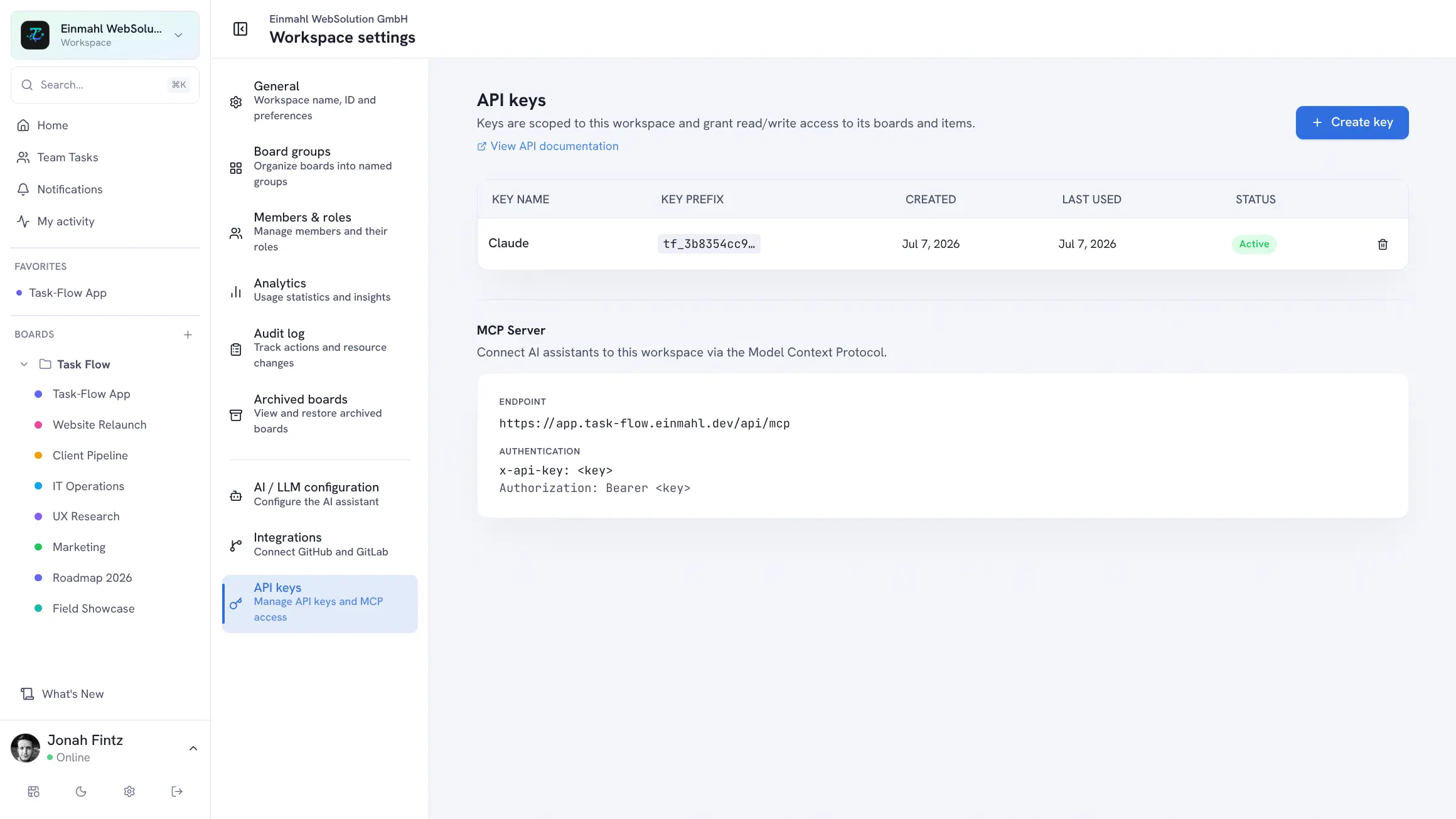
Clients without OAuth support can use a workspace API key instead — create one under Workspace settings → API keys and send it as a header:
{
  "mcpServers": {
    "tskvlo": {
      "url": "https://dash.tskvlo.app/api/mcp",
      "headers": {
        "Authorization": "Bearer YOUR_API_KEY"
      }
    }
  }
}
The MCP setup guide walks through both paths step by step.
Example Prompts
Once connected, you can ask Claude things like:
- “What’s in my ‘In Progress’ column on the Website Redesign board?”
- “Create 5 tasks for the new user onboarding feature and assign them to Sarah”
- “Mark everything in the Backlog that’s tagged ‘Q2’ as priority High”
- “What are my unread notifications since Monday? Summarize them and mark them as read”
- “Add an automation to the Support board: when Status changes to Done, move the item to the ‘Closed’ group”
- “Move the ‘Checkout bug’ task from the Support board to the Engineering board’s Backlog”
- “Read the ‘Release checklist’ wiki page and create a task for every step”
More ideas in the AI prompts guide.
Authentication, Read-Only Access & Discovery
The MCP server accepts two kinds of credentials:
- OAuth 2.1 — for clients like Claude’s custom connectors. The client registers itself automatically, the sign-in uses PKCE, and you approve the connection on a TskVlo consent screen. Only workspace Owners and Admins can authorize a connection, and each connection is tied to the one workspace you pick. Access tokens are short-lived and refreshed in the background; a connection stops working as soon as you lose the Owner or Admin role.
- Workspace API keys — created under Workspace settings → API keys and sent as a Bearer token or via the
x-api-keyheader. A key is scoped to its workspace and doesn’t belong to any user, so content it creates appears as posted by “MCP User”.
Both can be read-only: create an API key with Read-only access, or tick Grant read-only access on the OAuth consent screen. A read-only connection doesn’t even see the write tools — the AI can look, but not change anything.
The server also exposes standard discovery endpoints (/.well-known/mcp/server-card and the OAuth metadata documents), so MCP-compatible clients can find the tools and the sign-in flow without manual configuration.