
Repeating the same manual steps every sprint? Automation rules handle the routine so your team can focus on actual work.
How It Works
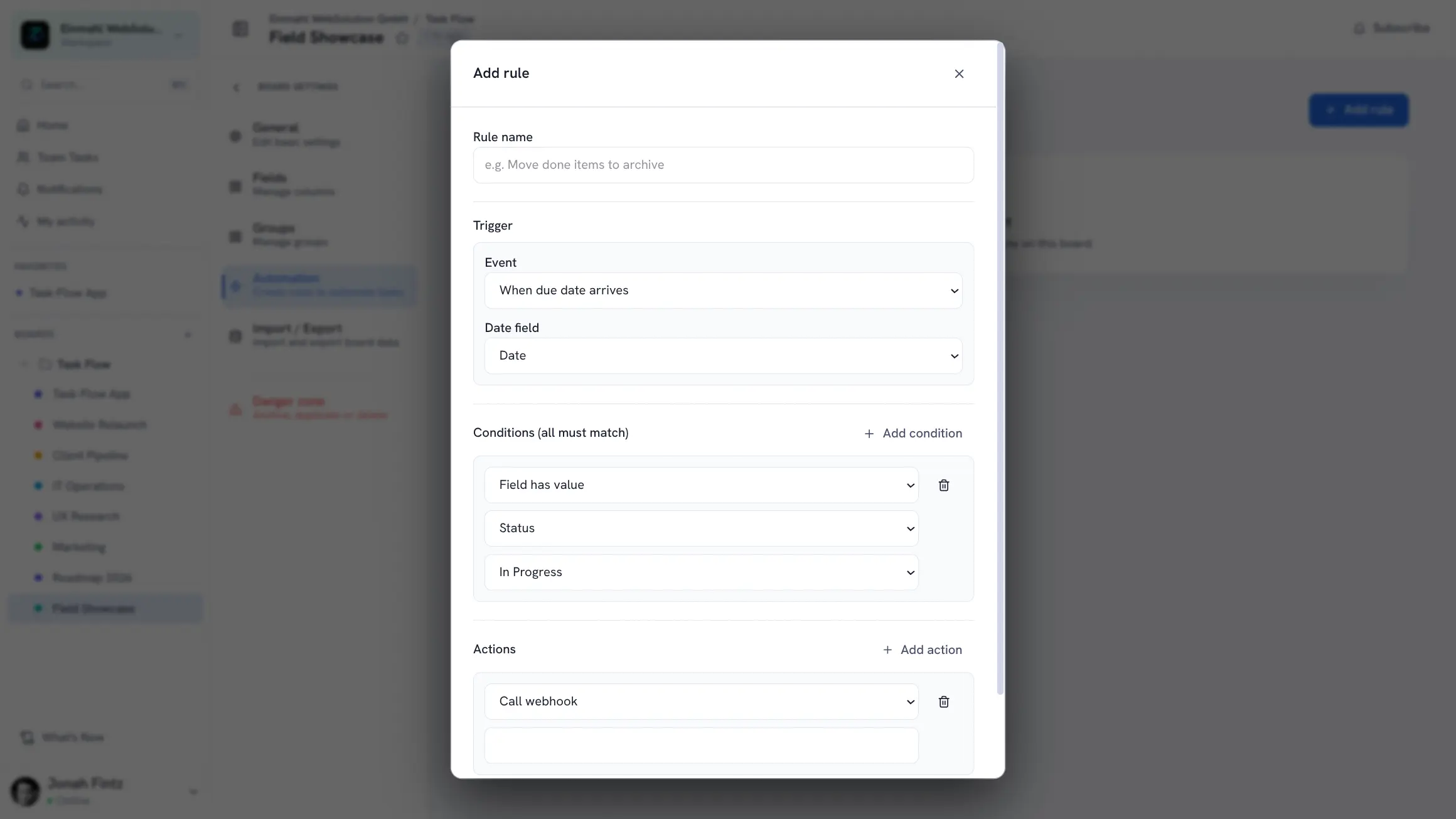
An automation rule has three parts:
- Trigger — what event starts the rule (e.g., “Status field changes to Done”)
- Conditions (optional) — filters that must all be true for the actions to run (e.g., “item is in a specific group”)
- Actions — what happens, in order (e.g., “Move item to the Archived group”)
Rules run automatically on the server whenever the trigger fires — no browser required.
Triggers
- When field is changed — a field changes to a specific value; this is how status-change rules work
- When item is created / When item is created in group — a new item appears on the board, or in a specific group
- When item is moved to group — an item is moved into a specific group
- When due date arrives — checked once a day for a chosen date field, or any date field
- When comment is added — someone comments on an item
- When time is logged — a time entry is recorded on an item
- When dependency is unblocked — an item’s blocking dependency is completed
- When SCM status changes — a linked pull request, merge request, or issue changes status, for example when it’s merged (requires the Git integration)
- On a schedule — runs every day at a time you choose
- Manual run — runs only when you start it
Conditions
Narrow a rule down with any combination of: Field has value, Item is in group, Has blocked dependency, and Has no blocked dependency. All conditions must match for the actions to run.
Actions
- Set field to value — update any field, such as Status or Priority
- Move to group and Archive item
- Assign person — fill a Person field with the item creator, the user who triggered the rule, a board watcher, or a specific member
- Set due date — set a date field a chosen number of days from when the rule runs
- Add comment — post a comment on the item
- Create item — add a new item with a given title to a chosen group
- Send email — send an email with your own subject and body to any address
- Call webhook — send a JSON request to any URL, for Slack, Zapier, or your own services
- Send notification — notify the item’s assignees or all workspace members, with an optional message
Example Rules
Auto-archive completed items
- Trigger: Status field changes to “Done”
- Action: Archive item
Notify on blocking
- Trigger: Item moved to “In Progress” group
- Condition: Item has a blocked dependency
- Action: Send a notification to the item’s assignees
Hand off for review
- Trigger: Status field changes to “In Review”
- Actions: Assign the reviewer as a specific person, then add a comment “Ready for review”
Follow up on new requests
- Trigger: When item is created in group “Inbox”
- Actions: Assign the triggering user, set the due date to 2 days out
Daily standup item
- Trigger: On a schedule, every day at 09:00
- Action: Create item “Daily standup” in the “Today” group
Move work when the code moves
- Trigger: When SCM status changes
- Action: Move item to the “Review” group
Manual and Scheduled Runs
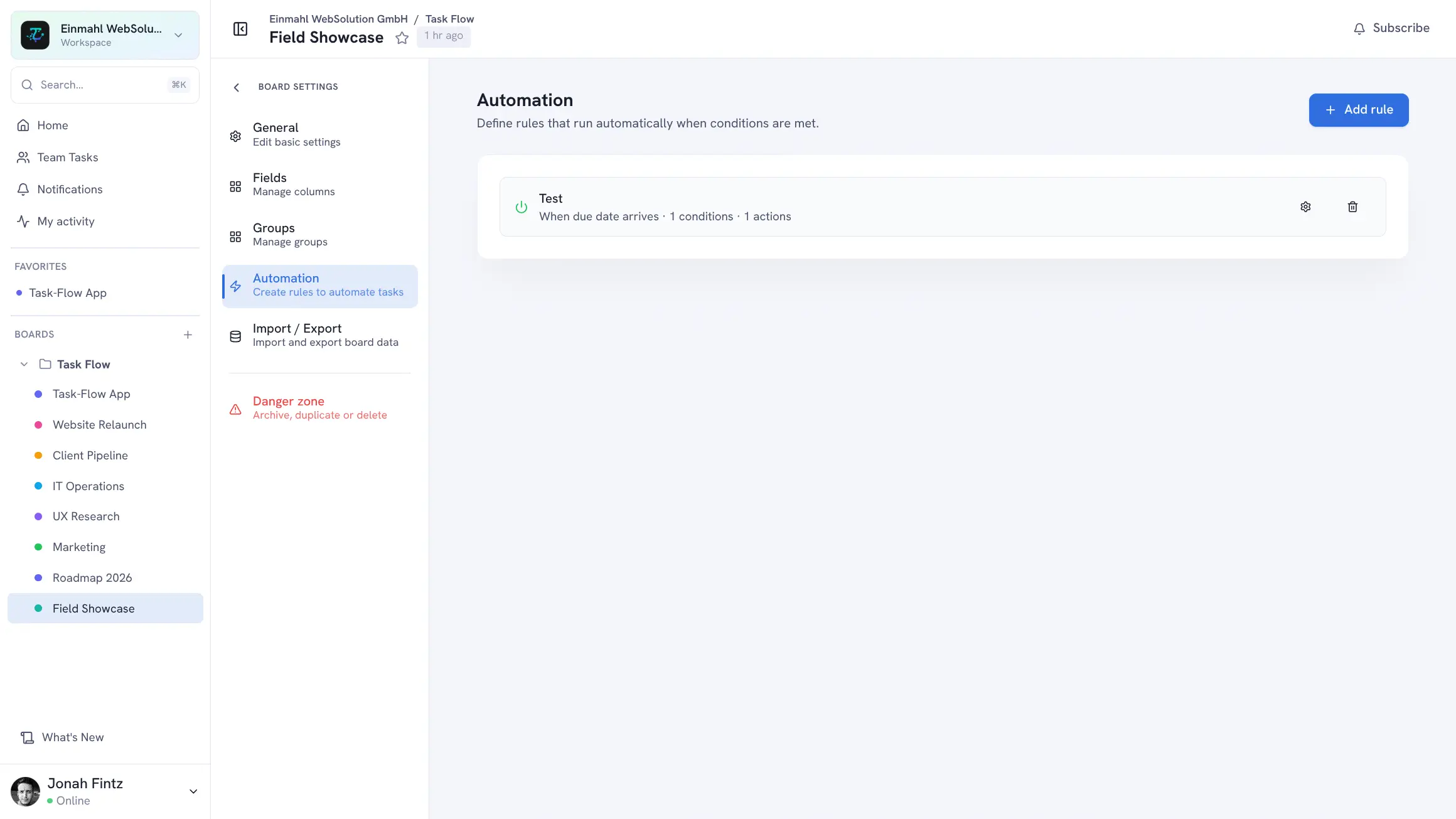
Rules with the Manual run trigger get a Run now button in Board Settings → Automation, so you can start a routine — like posting a webhook or creating a batch of follow-up items — exactly when you need it. Scheduled rules run once per day at their set time. Because manual and scheduled runs don’t start from a specific item, they work best with actions like Create item, Send email, and Call webhook.
Run History
Every rule has a Run history showing when it ran, which item it ran on, and which actions were executed. Changes made by a rule also show up in the affected item’s activity feed, so you can always trace why something changed.
Rules That Are Checked Before They’re Saved
TskVlo validates every rule before saving it. A rule with an unknown trigger, condition, or action, or without a name or at least one action, is rejected with a clear error message — so broken rules never silently sit on your board.
Automations via Your AI Assistant
Board automations are also available through the TskVlo MCP server. A connected AI assistant can list, view, create, update, and delete rules, and run a manual rule — optionally against a specific item. Ask it to “notify the assignees when a bug’s status changes to QA” or “create a standup item every morning at 9”, and it builds the rule for you. Rules created this way go through the same checks, can only reference fields and groups of their own board, and appear in the open automation settings right away. See AI integration for how to connect your assistant.
Board-Level Rules
Each board has its own set of automation rules configured in Board Settings → Automation. Rules only apply within their board. To reuse a set of rules on other boards, save the board as a board template — templates bring their automation rules along.
Recurring Tasks
For work that repeats on a schedule — standups, invoicing, weekly reports — you don’t need a rule at all. Set a recurrence directly on the task (daily, weekly, monthly, or every N days/weeks/months), and the moment its status is set to done, TskVlo creates the next occurrence automatically: same fields and assignees, fresh status, and date fields shifted forward by the interval. See the recurring tasks guide for details.
No Code Required
Rules are defined through the UI with dropdown selectors for triggers, conditions, and actions. The underlying rule data is stored as JSON, so the same rules can also be read and managed through the API and the MCP server.