
TskVlo keeps your team aligned without the overhead of separate communication tools — everything happens in context, right next to the task.
Real-Time Updates
Board changes from any team member appear instantly for all viewers via Server-Sent Events (SSE). No manual refresh needed. When someone moves a card or updates a status, you see it happen live.
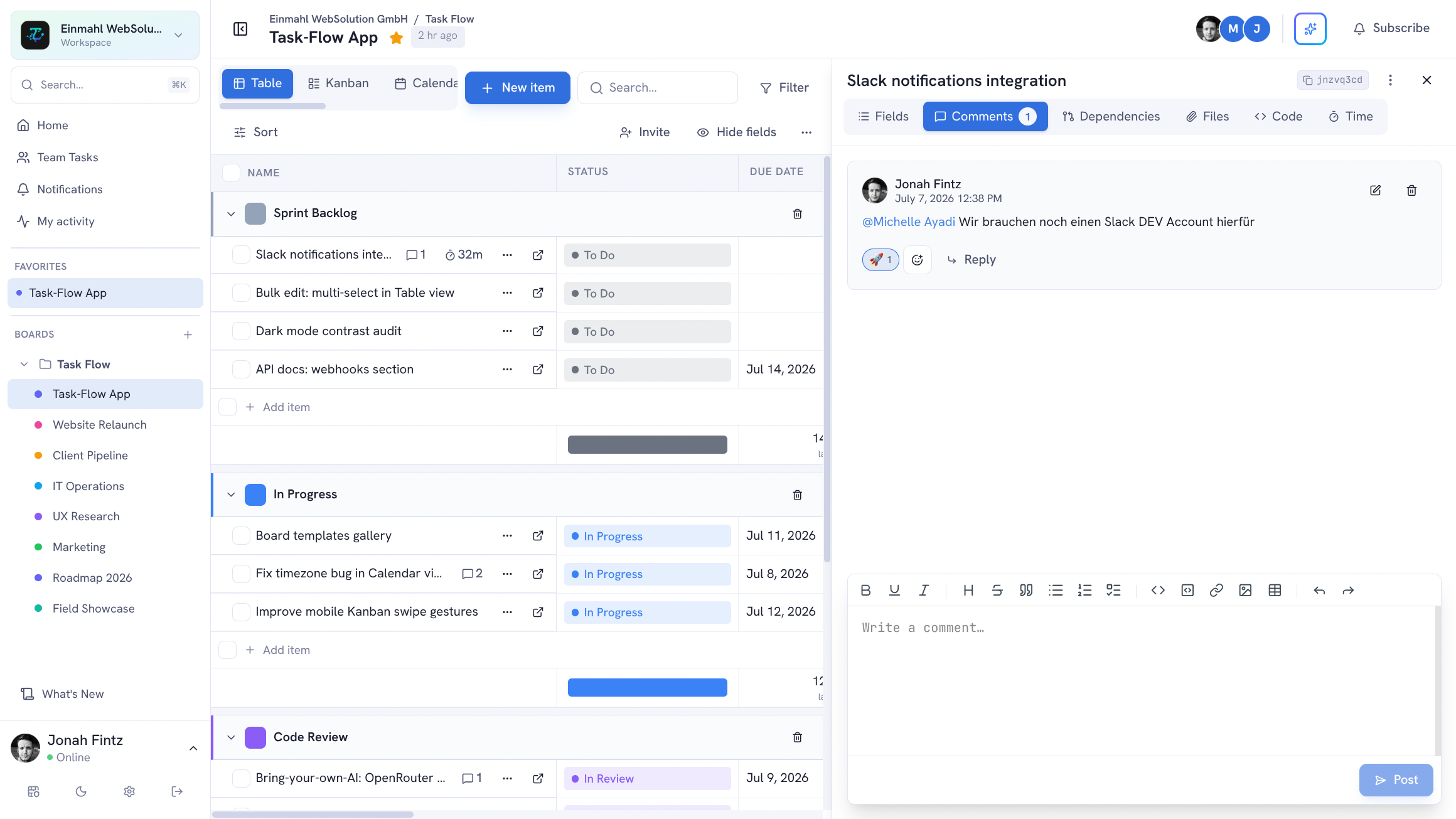
Threaded Comments
Every item has a comment thread. Reply to specific comments to create sub-threads — keeping discussions organized by topic rather than in one long stream.
Comments support:
- Markdown formatting — headings, lists, tables, links, and code blocks
- @mentions — type
@to bring up a member picker; mentioned members receive a notification - File attachments, and images pasted straight from the clipboard
- Emoji reactions (any emoji, any comment)
Pin what matters. Pin any top-level comment to the top of the thread — the decision, the spec link, the agreed deadline. Pinned comments are highlighted with a Pinned badge and stay on top for everyone on the board, on share links, and through the TskVlo MCP server.
Sort your way. Switch the thread between Oldest first and Newest first. TskVlo remembers your choice; pinned comments always stay on top.
Never lose a draft. Half-written comments are kept while you switch between items or tabs, and a quiet “draft saved” indicator confirms it. The comment box is resizable, and its height is remembered.
Long thread? Click Summarize with AI to get a structured digest — overview, decisions, open questions, and action items — and post it back as a comment. (Requires the AI assistant to be configured.)
One Editor Everywhere
Comments, item descriptions, AI chat messages, and Wiki pages all use the same markdown editor, so formatting looks and behaves identically wherever you write. Paste an image from the clipboard and it is uploaded and embedded automatically. Code blocks are searchable and copy with one click, and links to external websites open in a new tab.
Nested Subtasks
Break big work down as far as it needs to go. Add a subtask under any task or subtask — from the row’s … menu, with the quick-add button next to each row, or in the item detail panel. Pin, archive, copy ID, and delete are available directly from a subtask’s row menu.
Need to hand a task over to another team? Through the TskVlo MCP server, an item can be moved to another board together with all its subtasks. Field values carry over wherever the target board has a field with the same name and type (Status and Tags options are matched by label); values without a match are dropped and reported.
My Tasks
My Tasks collects everything assigned to you across all boards, grouped for planning: Overdue, Today, This week (the calendar week), This month, and Later. Towards the end of the week a Next week group appears, and towards the end of the month a Next month group, so upcoming work is visible before it’s due. Subtasks are nested under their parent — even when the parent isn’t assigned to you — in a collapsible tree.
Statuses like Done, Closed, Erledigt, or Fini are recognized as completed work everywhere: in My Tasks, workspace stats, automations, recurring tasks, and dependencies.
File Attachments
Attach files to items or directly to comments — up to 50 MB per file. Files are stored securely on TskVlo’s servers and displayed inline. Download any file without leaving the item detail view, or browse every file of a board in its Files view.
Supported: images (shown inline), PDFs, documents, archives, and any other file type. Each workspace has a storage quota; members can check current usage in Workspace settings → Storage.
Notifications
Stay on top of changes without checking every board manually:
- In-app notifications — delivered in real time; the notification counter and feed update instantly without a page reload, and read state stays in sync across tabs, devices, and MCP sessions
- Browser push notifications — arrive even when the tab is closed or the app isn’t open; grant permission once in your account settings and choose which event types trigger a browser alert
- Email notifications — configured per notification type (mentions, assignments, comments, reactions, and more)
- Per-user preferences — each team member chooses which events trigger which notifications across all channels
Ctrl/Cmd-click or middle-click a notification to open it in a new tab — it is still marked as read. In the desktop app, the unread count appears in the window title. In-app notification toasts pause while the tab is in the background so you won’t miss them when you switch back.
Board Subscriptions
Subscribe to specific boards to receive notifications for all activity — without being assigned to every task. Useful for managers or stakeholders who need visibility without being directly involved.
Public Board Sharing
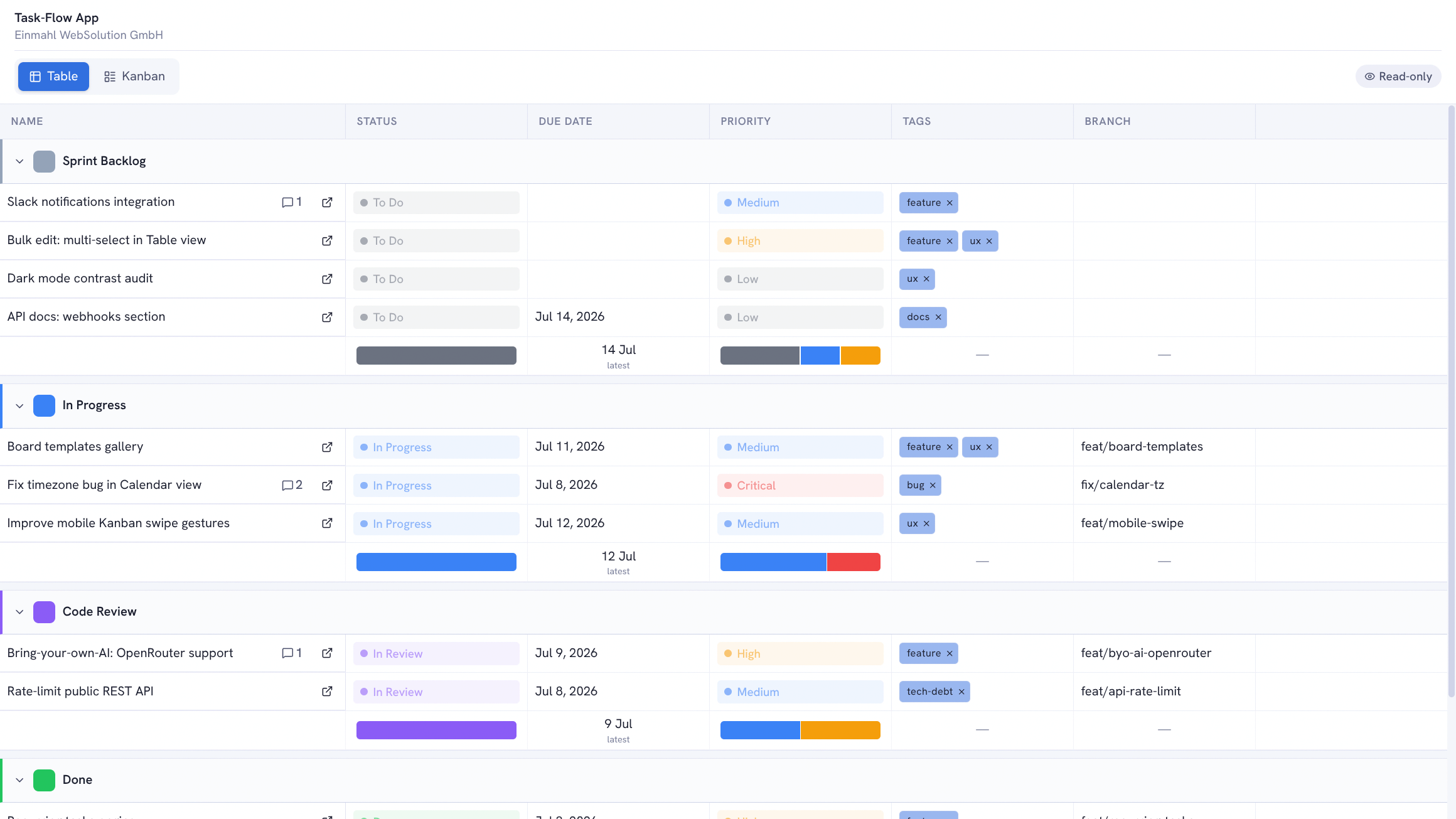
Share any board with people outside your workspace — clients, stakeholders, or the public — via a read-only link that requires no login.
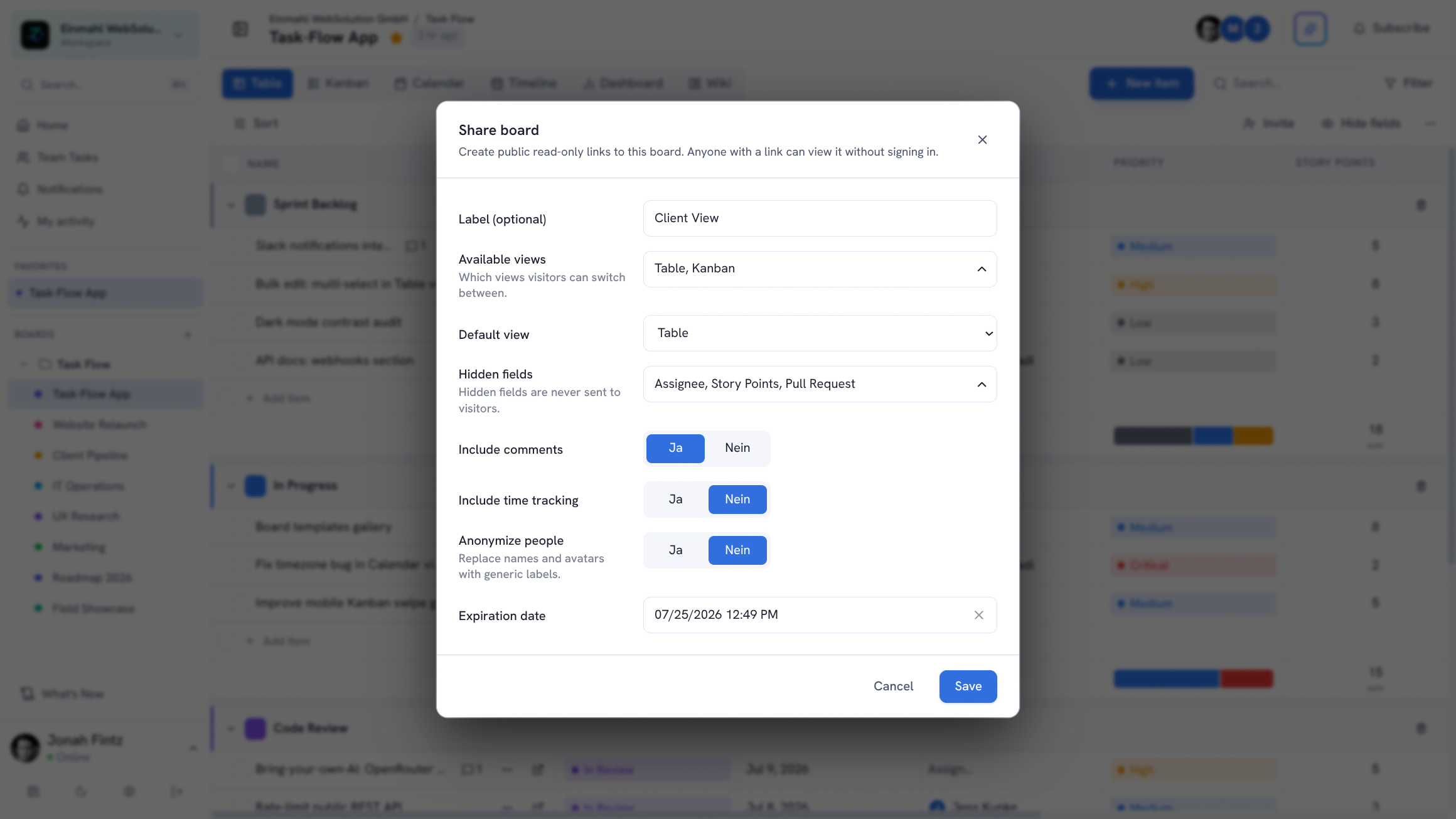
Create a share link with the Share button in the board header and configure exactly what recipients see:
- Available views — choose which view types (Table, Kanban, Calendar, …) are accessible
- Default view — which view opens when someone clicks the link
- Hidden fields — exclude fields that shouldn’t be visible externally
- Time tracking — include or exclude logged time data
- Comments — include or exclude the comment thread
- Anonymize persons — replace member names and avatars with generic labels for privacy
- Expiry date — links can expire automatically on a date you set
One board can have multiple share links — an internal view and a client-facing one, side by side. Shared boards update in real time and carry your workspace branding: the logo you upload and the brand color you set in Workspace settings → Branding.
Board Email Intake
Managers can enable a board address in Board Settings → Email. Incoming messages sent to that address become new board items: the subject becomes the item title, and the plain-text body becomes the description.
Each board can choose a default target group for email-created items. A subject in the form Group name // Task title can route a message to a matching group; otherwise TskVlo uses the configured default group and then the board’s first group as a fallback.
This is useful for support boards, request queues, or anywhere a team needs to capture work that arrives by email without copy-pasting. It is one-way intake, not two-way email synchronization.
Your Language
The dashboard is fully available in English, German, and French — including dates and editor controls. Each member picks their own language in their account settings.
Feedback Built In
Missing something? Click Feedback in the sidebar, write a title and a message, attach screenshots by picking them or dragging them in, and send it straight to the TskVlo team.
Activity Log
Every change to every item is recorded in the activity log: who changed what field, from what value to what value, and when. Full audit trail for accountability and compliance.