
Every team tracks different data. TskVlo’s custom fields let you define exactly what information belongs on each task — without being forced into a fixed structure.
12 Field Types
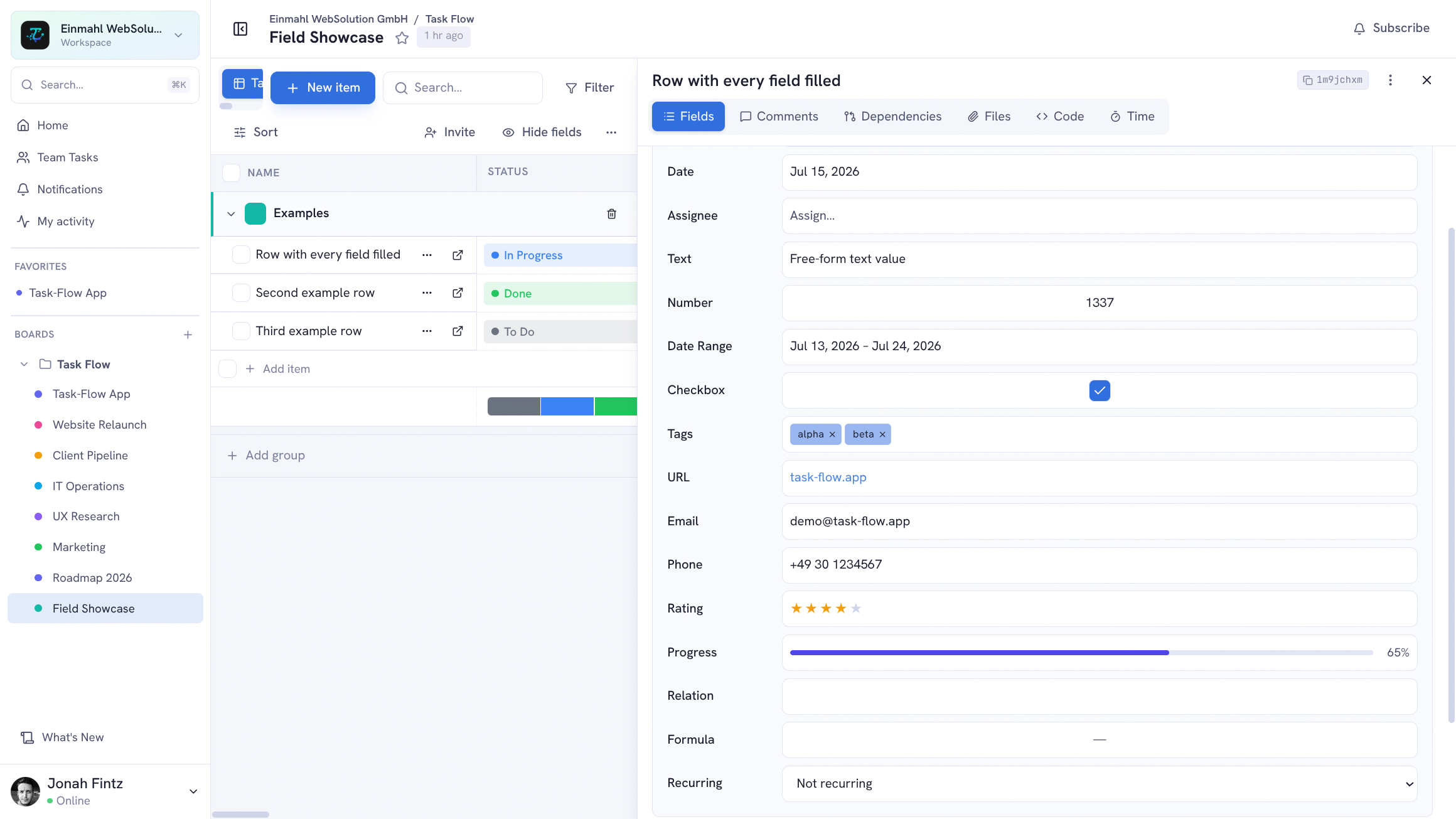
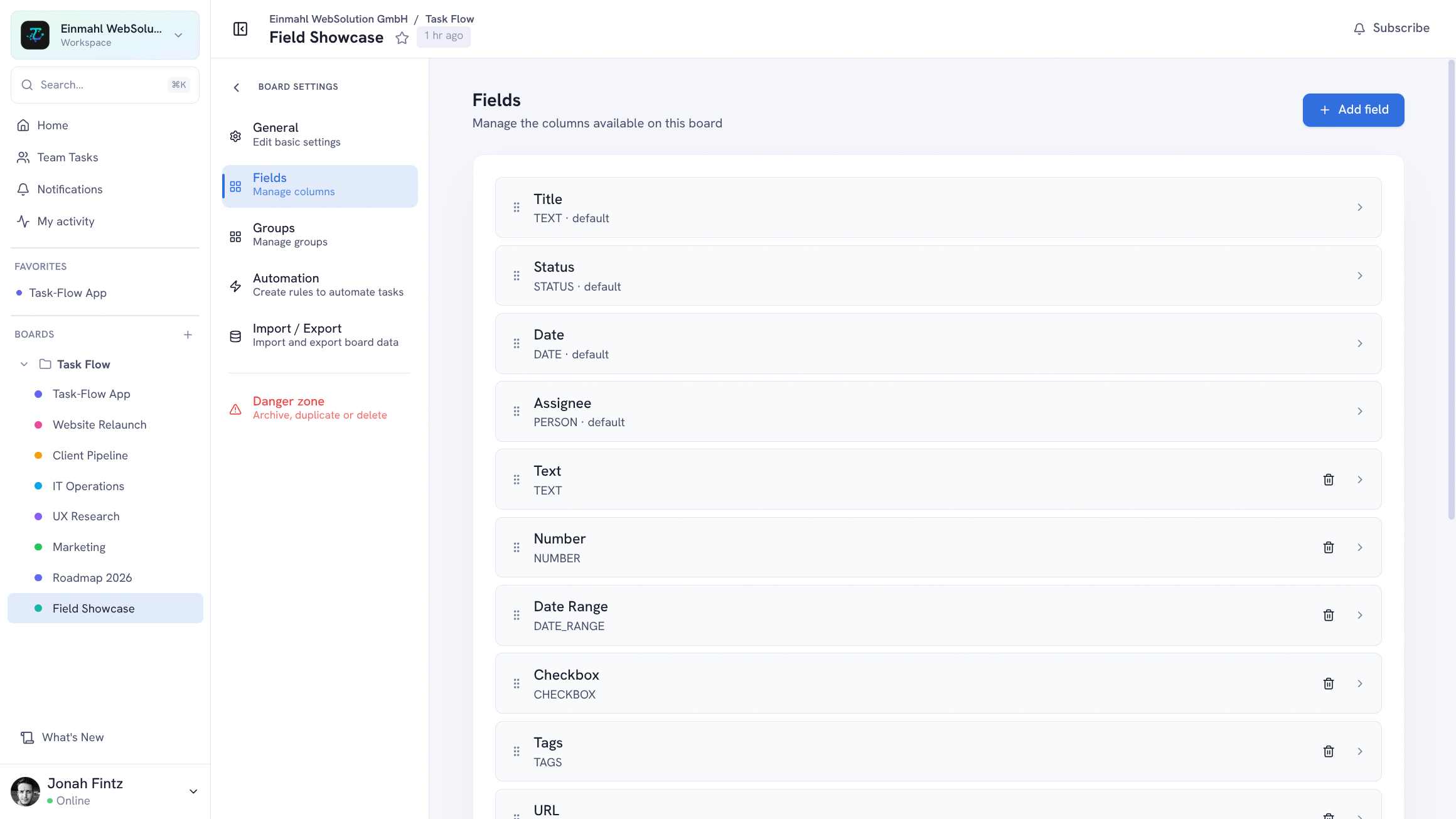
Each board can have any number of custom fields. Fields appear as columns in Table view and as metadata on Kanban cards.
Text
Free-form single-line or multi-line text. Use for notes, requirements descriptions, client names, or any label that doesn’t fit another type.
Number
Integer or decimal values. Ideal for story points, budget amounts, line counts, or any metric you track per task.
Status
A configurable list of status options, each with a custom label and color. Reflects your actual workflow states — not a one-size-fits-all “To Do / In Progress / Done”.
Example config: Backlog → Scoping → Development → Review → Staging → Done → Cancelled
Date & Date Range
Single date picker for deadlines and due dates. Date Range adds a start date + end date pair — perfect for sprint planning, availability windows, or project phases.
Person
Assign one or more workspace members. Used for task ownership, reviewers, or any people-based field. Shows member avatars inline.
Checkbox
A simple boolean toggle. Great for quick yes/no flags: “Client Approved”, “Invoiced”, “Blocked”, “Pinned for Sprint”.
Tags
Multi-select labels from a configurable list. Apply multiple tags per item for flexible categorization. Tags appear as colored chips with a shared deterministic palette, so the same tag keeps the same color in field editing, board display, suggestions, and shared board views.
When editing a tag field, TskVlo suggests tags already used in that same field on the board. Suggestions filter as you type, skip tags already on the item, and prioritize commonly used tags before alphabetical matches.
URL
Store and display web links. Clickable in all views — link to specs, designs, pull requests, or any external resource.
Rating
A 1–5 star rating. Use for priority scoring, effort estimates, quality ratings, or any ranked assessment.
Progress
A percentage bar from 0–100%. Show task completion, budget usage, or any proportional value at a glance.
Formula
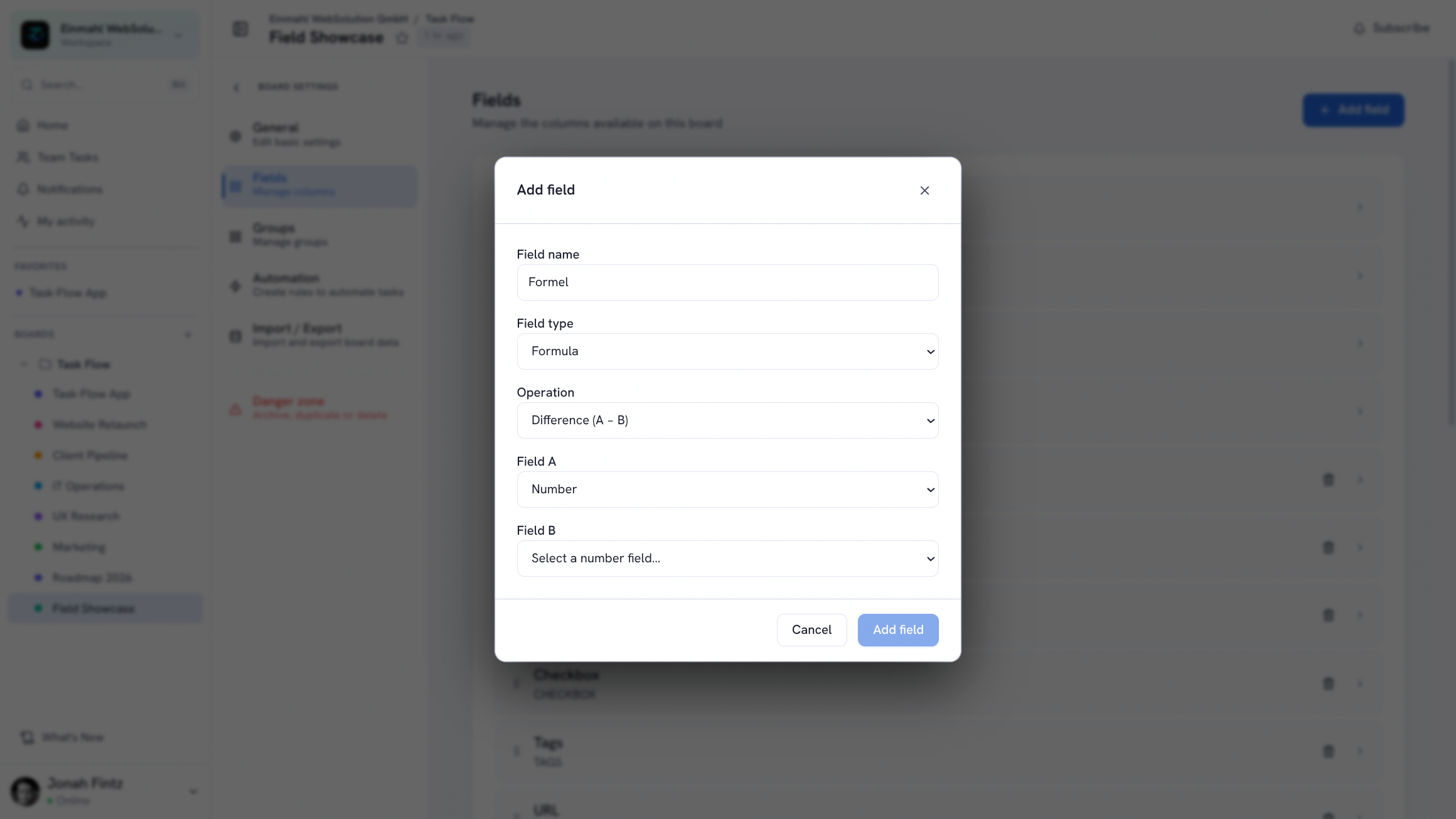
A computed value calculated from two Number fields on the same board — sum, difference, product, or quotient. Use for totals like rate × hours or budget − spent, updated automatically.
Looking for files or cross-board links? File attachments live directly on items and comments (50 MB per file by default) rather than as a field type, and a cross-board Relation field is on the roadmap. For blocking relationships, use the built-in item dependencies.
Field Configuration
Each field can be configured with:
- Name — what it’s called in your board
- Description — shown as a tooltip to guide team members
- Required — mark fields that must be filled before an item can be saved
- Hidden — toggle visibility without deleting the field and its data
- Width — control column width in Table view
Ordering & Reordering
Drag fields to reorder them. The order in the field list determines the column order in Table view and the display order on item detail panels.
Tips
- Use a Status field for your main workflow state, and a Checkbox for quick binary flags like “Needs Review” alongside it.
- Combine PERSON + DATE for ownership and deadline tracking on the same board without extra tools.
- Use FORMULA to replace external spreadsheets that calculate totals from your task data.