
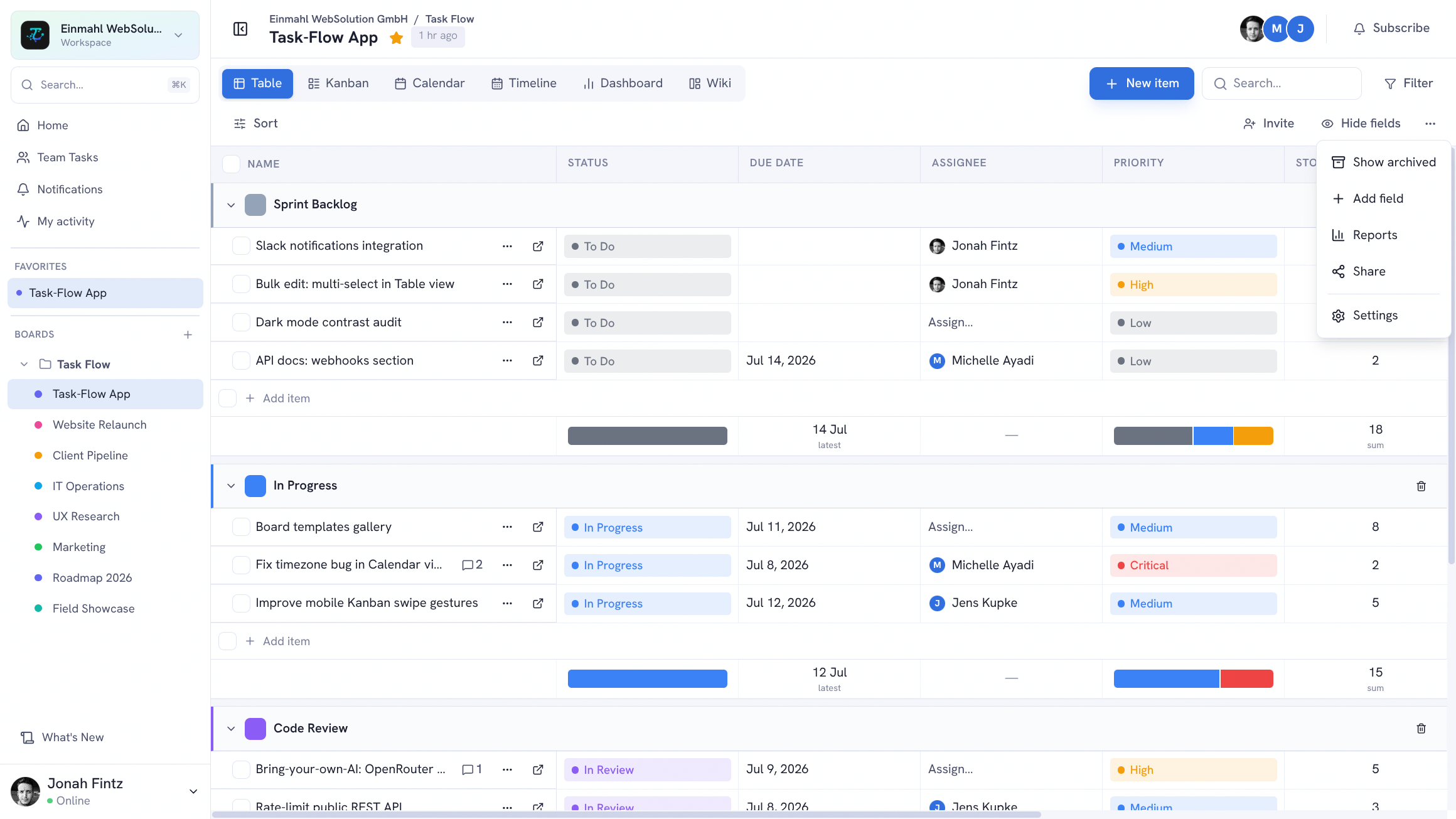
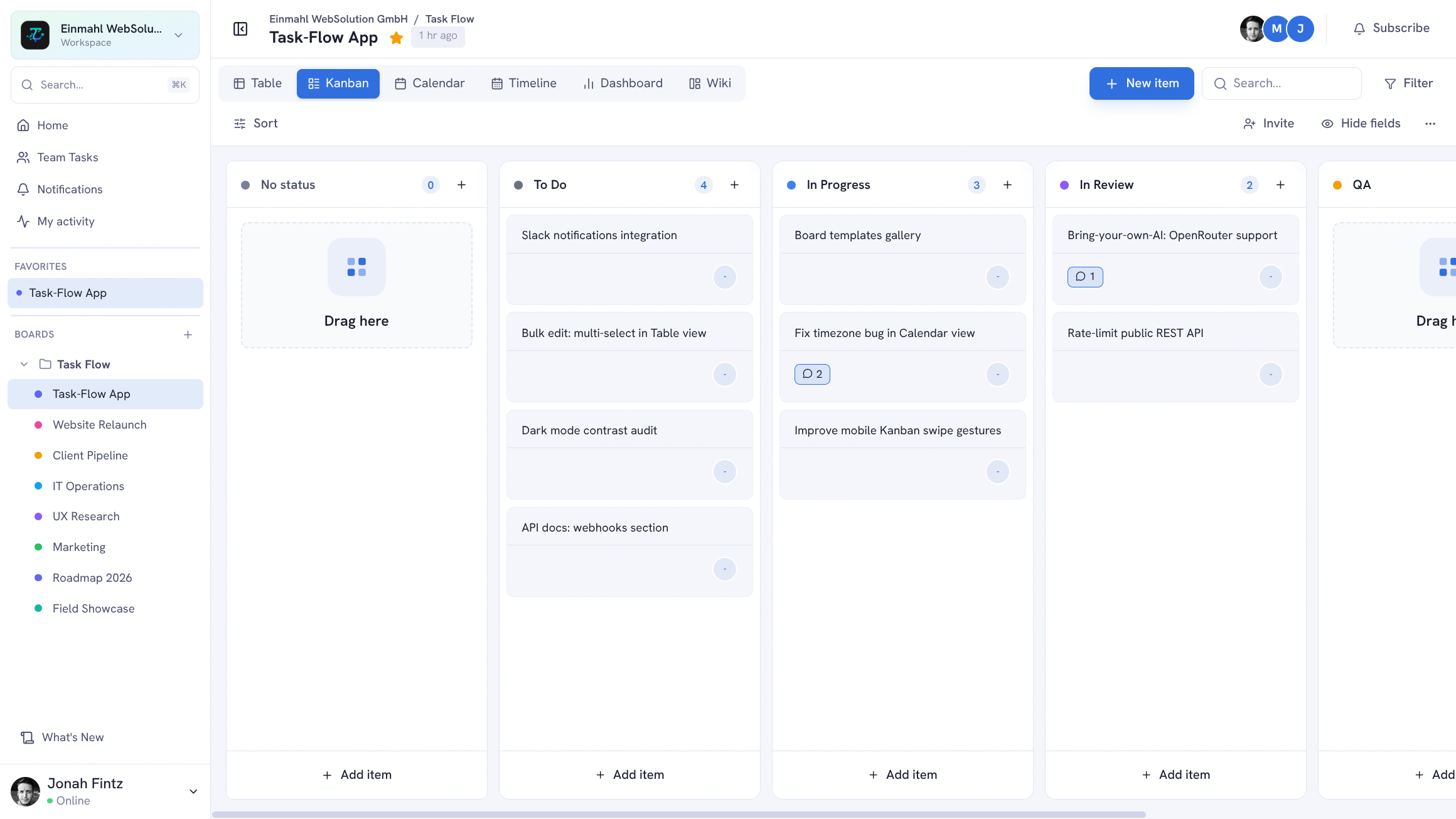
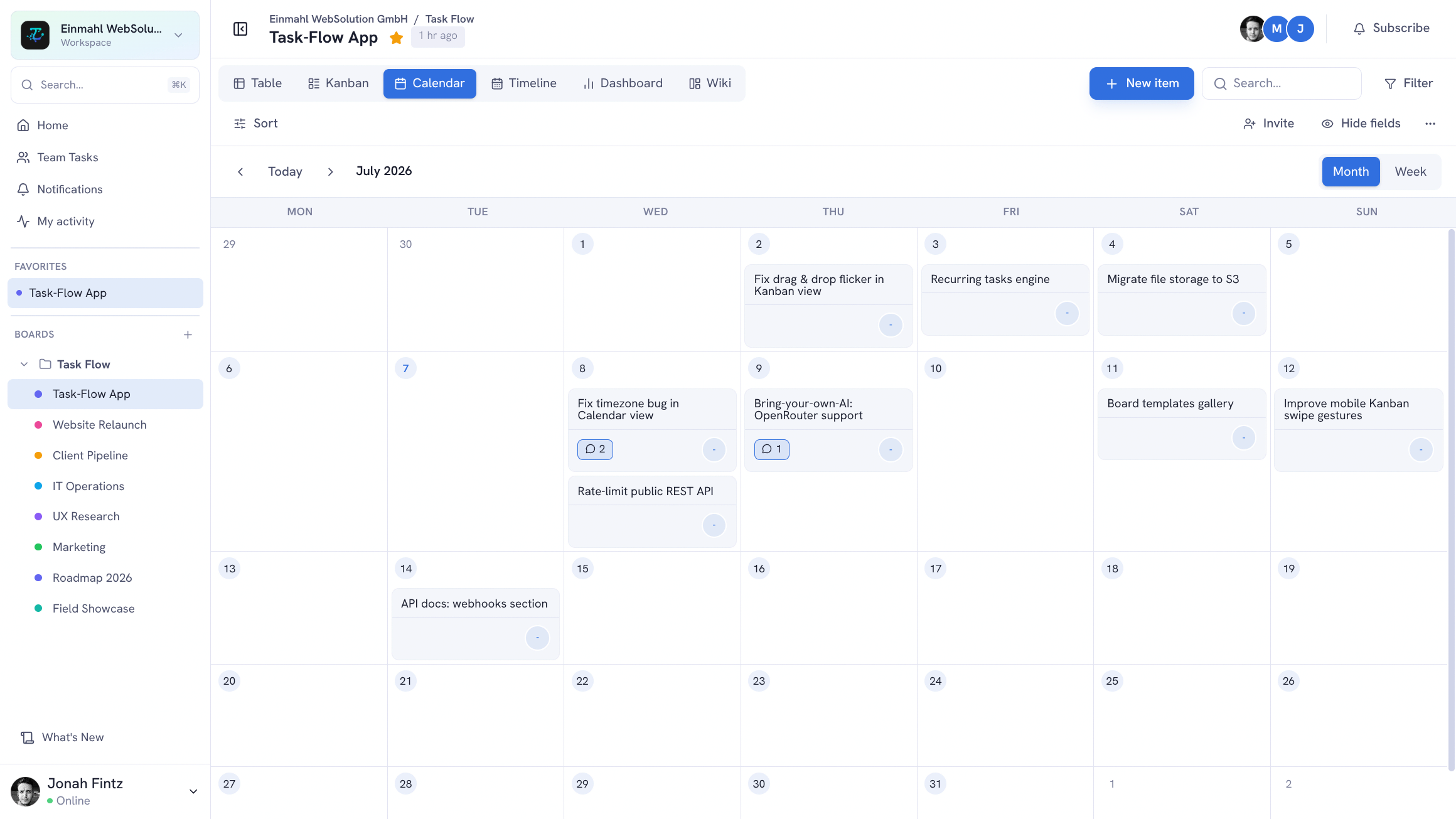
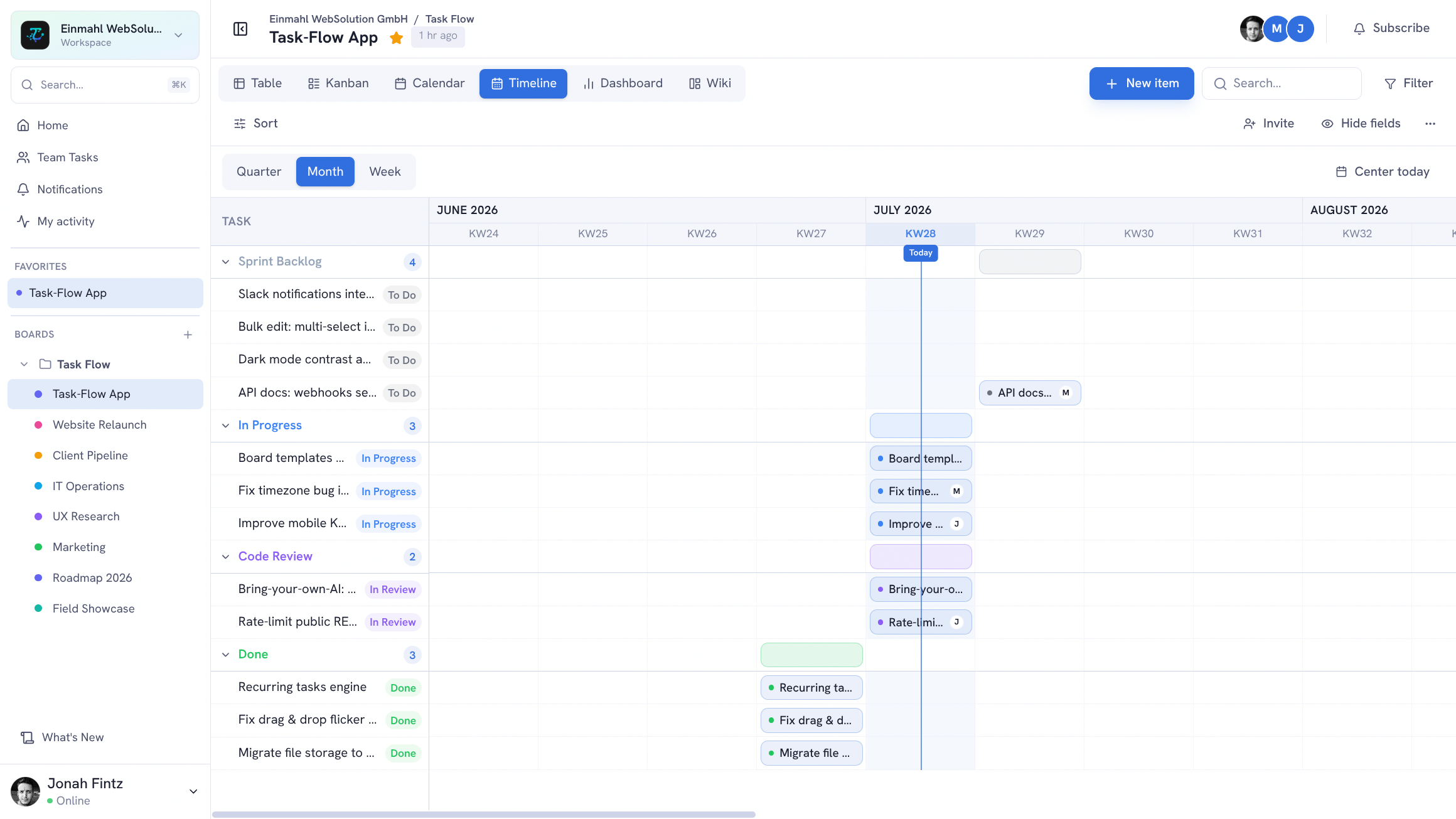
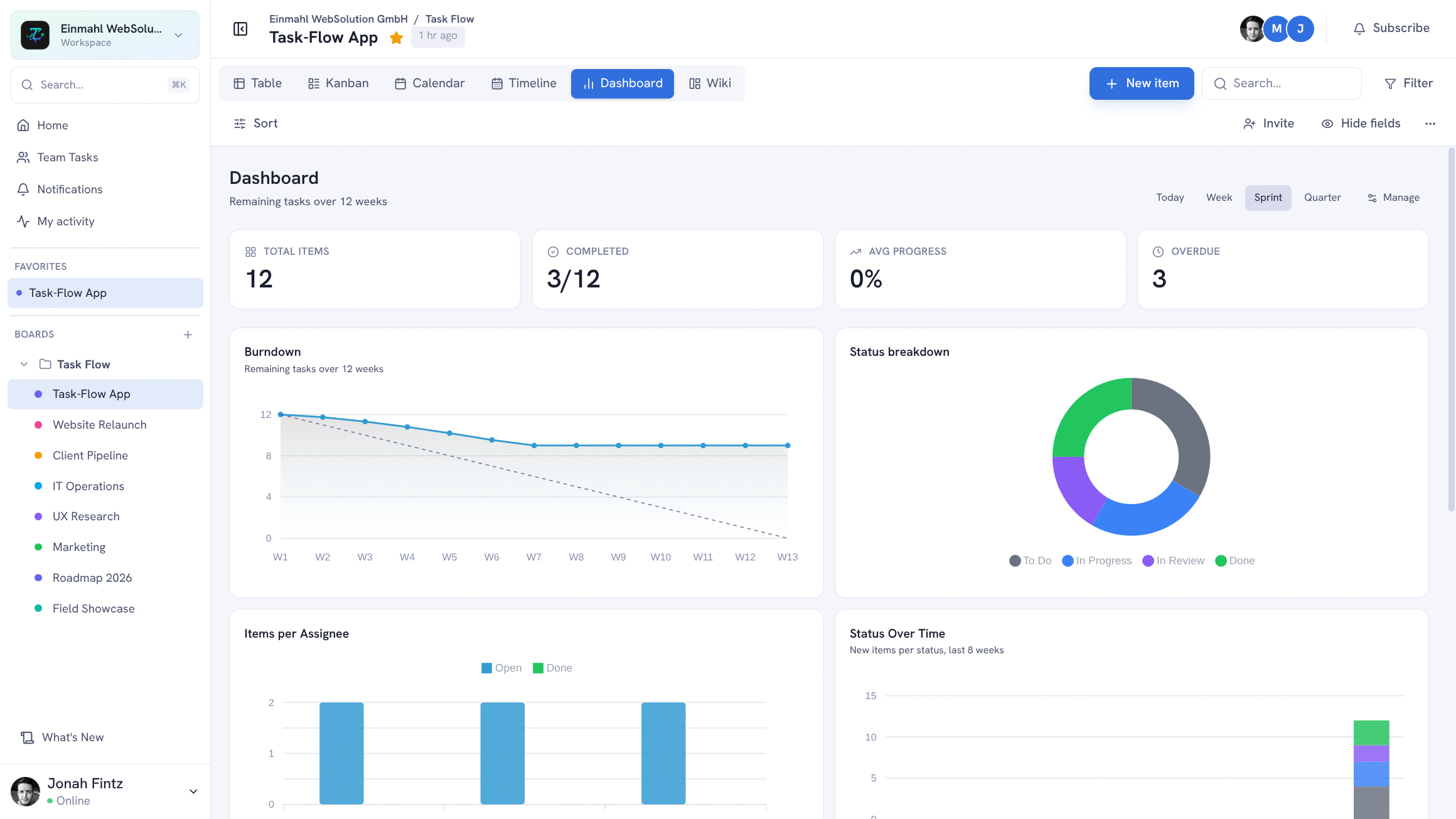
One board, six views. TskVlo lets you see the same data through the lens that fits the moment — a detailed spreadsheet for planning, a visual board for execution, a calendar or timeline for scheduling, every shared file in one place, and charts for tracking.
Table View
The Table view displays items as rows and fields as columns — familiar if you’ve used Notion, Airtable, or a spreadsheet.
What you can do:
- Resize columns by dragging column edges
- Sort by any field (ascending / descending)
- Group items by any field value (e.g., group by Status or Assignee)
- Filter items by field values, date ranges, or member
- Inline-edit any cell without opening the item detail
- Drag to reorder rows — drag the handle on any row to a new position within the same group or into a different one; the custom order is saved and restored automatically
- Shift-click range selection — hold Shift and click to select a contiguous range of items, then bulk-move, bulk-edit, or bulk-delete in one operation
- Add subtasks from the … menu — no need to open the detail panel; click the context menu on any item and choose Add Subtask
Best for: Sprint planning, bulk editing, reviewing many items at once, reporting.
Kanban View
The Kanban view organizes items as cards in columns (Item Groups). Drag cards between columns to update their group — which can automatically trigger automation rules.
What you can do:
- Drag cards within a column to reorder
- Drag cards between columns to change group/status
- Collapse columns to reduce visual noise
- See key field values directly on each card (configurable)
- Quickly add items at the bottom of any column
Best for: Day-to-day workflow management, standups, visual task tracking.
Saved Filters
Any filter combination can be saved as a named filter — scoped to a single board or available workspace-wide. Saved filters are personal: each member keeps their own set of perspectives on the same data.
Examples:
- “My Open Tasks” — filter by Assignee = me, Status ≠ Done
- “Current Sprint” — filter by Sprint tag = Sprint 12
- “Client Review” — show only client-facing items
There’s also a built-in My Tasks view that aggregates items assigned to you across all boards — in list or calendar mode, grouped by Overdue, Today, This Week, and Later.
Switching Views
Toggle between any of the six view types with a single click from the board toolbar. Your active filters and sort settings carry over when you switch, and each board remembers the view you used last — opening it from the sidebar, search, or the workspace overview takes you straight back there.
Density: Choose Compact, Comfortable, or Spacious from the Density menu in the toolbar to fit more rows on screen or give items more room. The setting applies to Table, Kanban, Calendar, and Timeline.
On mobile: The view switcher becomes a compact dropdown, and sort, density, and field options fold away behind an Options button so the board keeps as much room as possible.
Additional View Types
Beyond Table and Kanban, TskVlo includes four more view types:
Timeline — A Gantt-style view plotting items as bars over their date ranges, with week, month, and quarter zoom levels. Ideal for project scheduling and deadline visibility.
Calendar — Displays items by date in month and week modes. Drag entries to a new date to reschedule them. On phones, the month view becomes a compact grid with colored dots per day and a list of the selected day’s items below it, and the week view turns into a vertical agenda with one day per row.
Dashboard — Chart widgets across your board — burndown, status donut, per-assignee bars, status over time, activity heatmap, velocity, group progress, and time per user. Toggle widgets on or off and reorder them. The period filter (All time, Today, Week, Quarter) narrows the KPI tiles, status chart, items per assignee, and progress by group, and your choice is remembered per board.
Files View
The Files view collects every file on a board in one place — files uploaded straight to the board, task attachments, and files attached to task comments.
What you can do:
- Upload files with the Upload files button or by dragging them anywhere onto the view
- Switch between a Grid with image thumbnails and a List with uploader, size, and date
- Group files by status, group, or date added (Today, Yesterday, Last week, …)
- Filter by Board uploads or Task attachments, and search by file name
- Click a file to preview it — images, PDFs, videos, audio, Markdown, JSON, and text files open right in the app; everything else can be downloaded
- Jump from a task attachment to its task via the linked task title
- See new and removed files appear live, without reloading
Layout and grouping are remembered per board. Members upload files, viewers can browse, preview, and download, and files can be deleted by their uploader or a workspace admin.
Best for: Collecting briefs, designs, contracts, and deliverables for a project, and finding the file someone attached to a task weeks ago.
Switch between all six views from the view selector in the board toolbar. Public share links offer Table, Kanban, Calendar, Timeline, and Dashboard; the Files view is only available inside the workspace.