
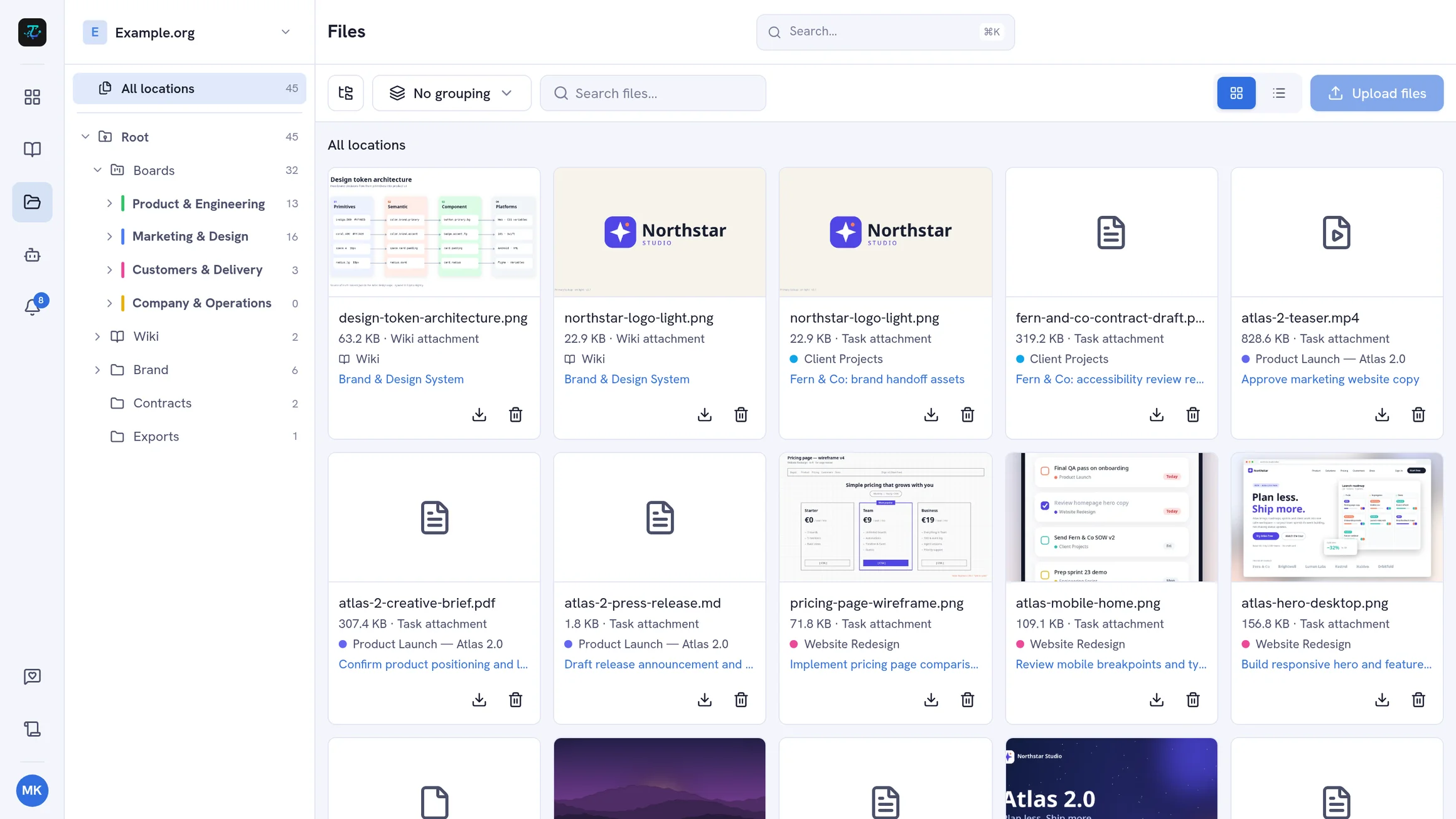
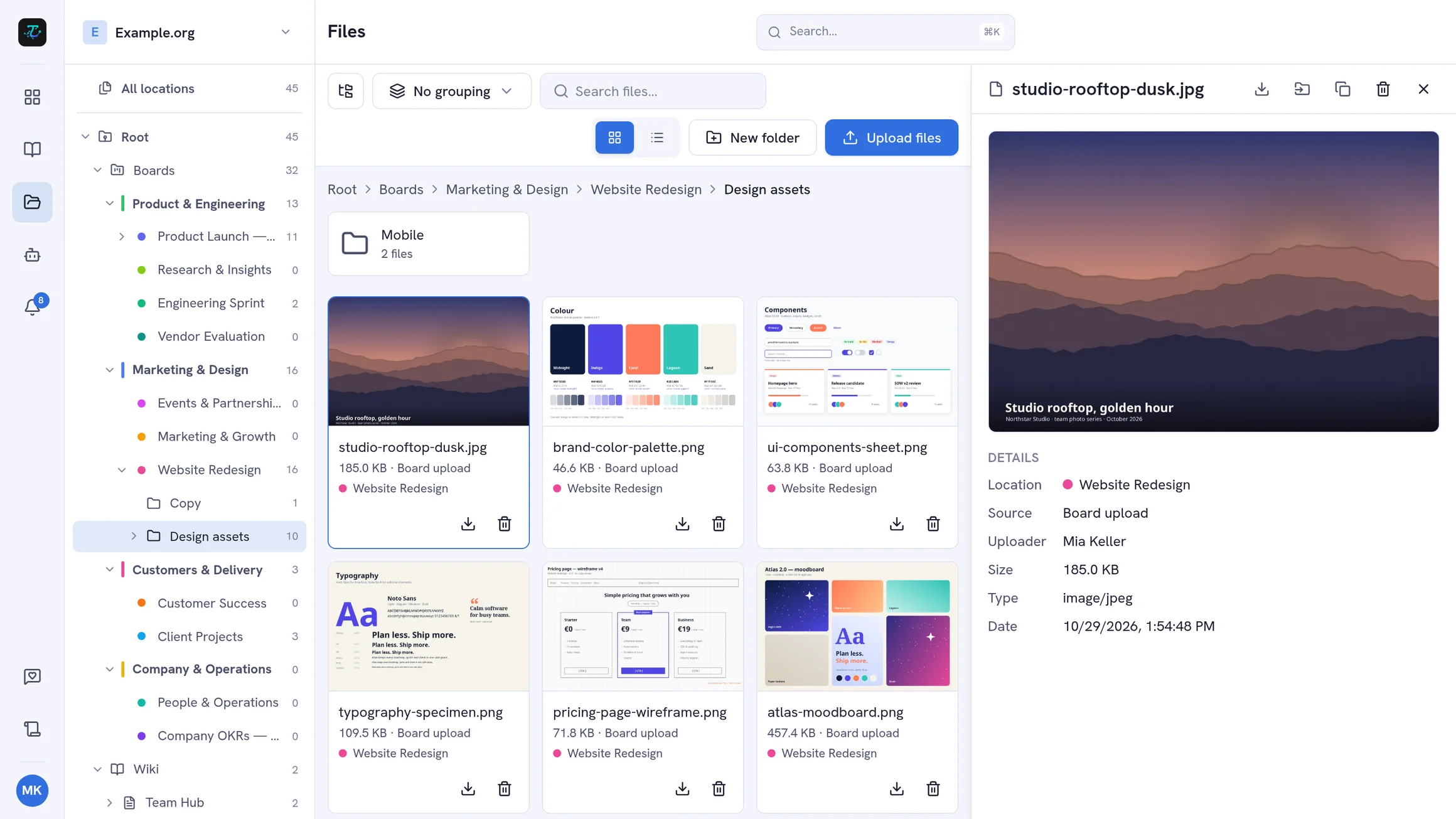
Files used to be scattered across tasks, comments, boards, and wiki pages. The Files section in the navigation rail brings them together: one file manager for the whole workspace, with a location tree on the left and your files on the right.
One Location Tree
The tree mirrors how your workspace is organized:
- All locations — every file you have access to, in one list
- Boards — your board groups and boards, each with its own folders; a board holds its uploads, task attachments, and comment attachments
- Wiki — the wiki’s page tree, with each page’s attachments
- Workspace folders and files — at the root, for files that belong to no board at all: contracts, brand assets, exports
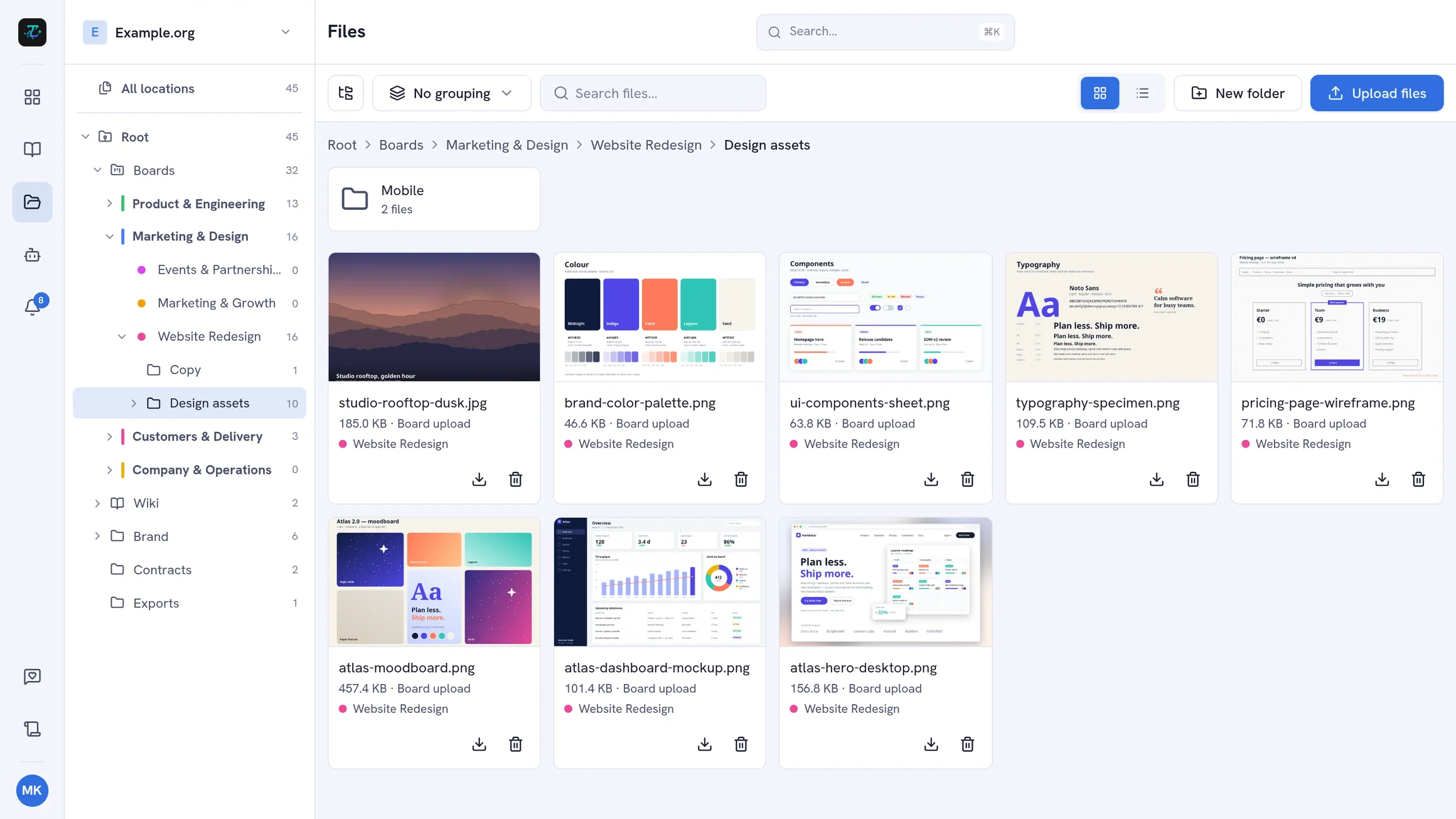
Every row shows how many files sit below it, and the tree remembers which branches you expanded.
Folders, Move, and Copy
Create folders inside a board or at the workspace root, nest them as deep as you need, and rename or delete them from their menu. Deleting a folder removes its subfolders and files with it.
Moving is drag and drop: drop a file or folder onto a board or folder in the tree. Hold Ctrl or Alt while dragging to copy instead. The Move to… and Copy to… dialogs do the same without dragging.
Upload Where It Belongs
Select a location and upload with the button, or drop files straight onto the page. Files land in the selected board or folder, or are attached to the selected wiki page.
Find Files Fast
Switch between a grid with thumbnails and a list with name, location, task or page, uploader, size, and date. Search by file name, and group the list by location or by the date the file was added.
Previews and Details
Open a file to preview it without downloading: images, PDF, video, audio, Markdown, JSON, and plain text. The details panel shows where the file comes from, its type, uploader, size, and date — and a file attached to a task links straight to that task.
Permissions
The Files section follows your workspace roles. Members, admins, and owners upload files and manage folders; viewers browse, preview, and download. Members restricted to selected boards only see those boards’ files, and the Wiki branch is only there for members with wiki access. Files are not shown on public share links.
Learn more in the guide: Use the Files Section.